 站長資訊網
站長資訊網本篇文章給大家分享一個vscode插件–power mode,編寫代碼邊放煙花、編輯器還會抖動;一起來研究一下power mode插件實現煙花抖動效果的原理,一起來看看吧!
最近一直在研究 vscode 插件,今天給大家一分享一個效果特別炫的插件,名字叫 power mode。
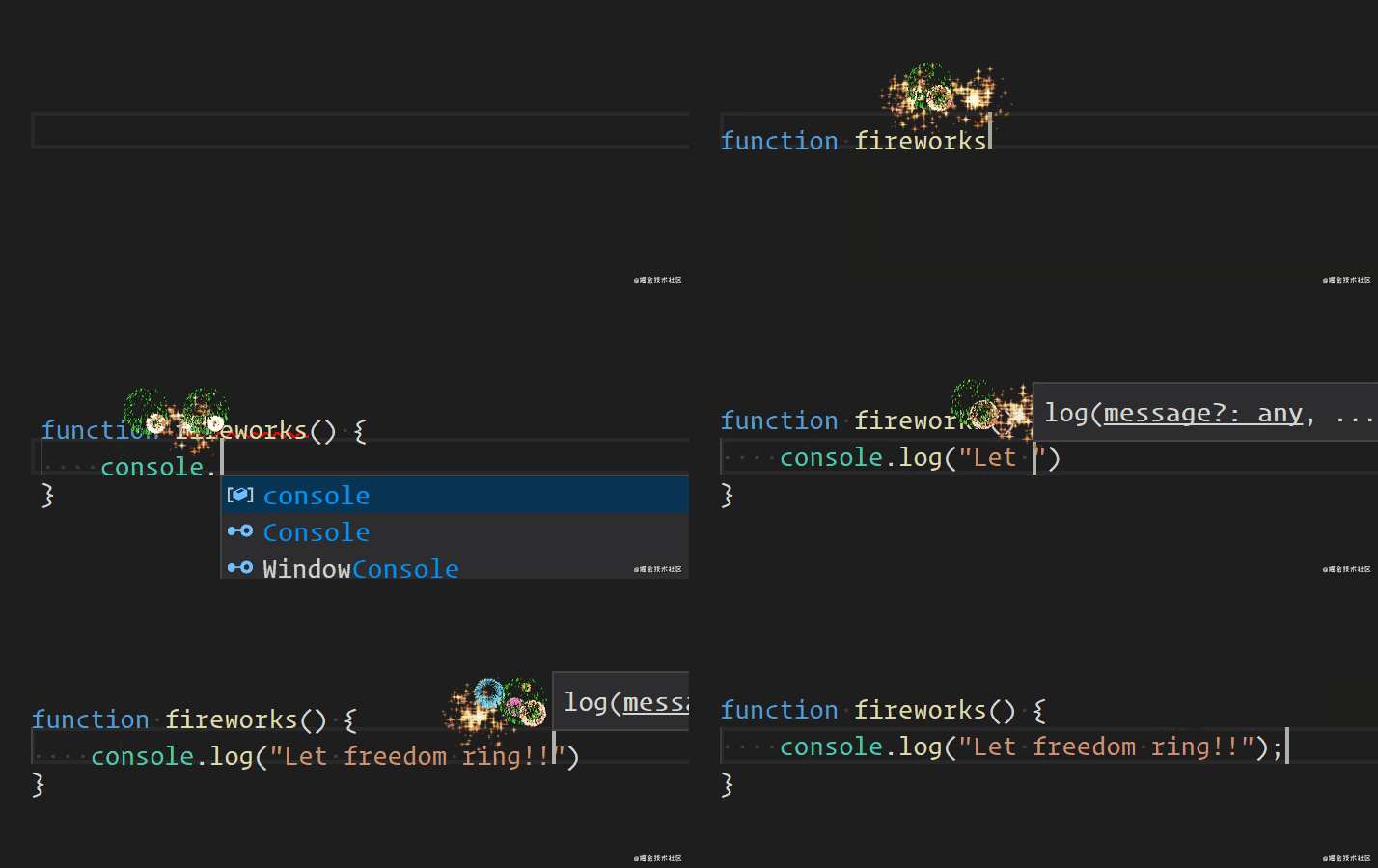
編寫代碼邊放煙花、編輯器還會抖動。
效果很炫,但是我們肯定不能滿足于會用,得研究下它是怎么實現的。
實現思路
在 vscode 里大家可能沒啥思路,但如果這個效果放到網頁里呢,文本改變的時候抖動編輯器、然后再上面出現一些煙花效果。這個可能有的同學就有思路了。【推薦學習:《vscode教程》】
抖動編輯器:抖動不也是個動畫么,就是左右位移,這一秒右移,下一秒回到原位置,這樣就抖起來了。
煙花效果:不管啥花里胡哨的煙花,給個 gif 我們就能搞定,就是在文本上方加一個元素,然后把 gif 放上去,下次加 gif 的時候把上次的刪除。
這樣就能在網頁里實現編輯器抖動 + 放煙花效果了。
把這個效果放到 vscode 里實現也是一樣的思路,因為 vscode 是基于 electron 實現的啊。
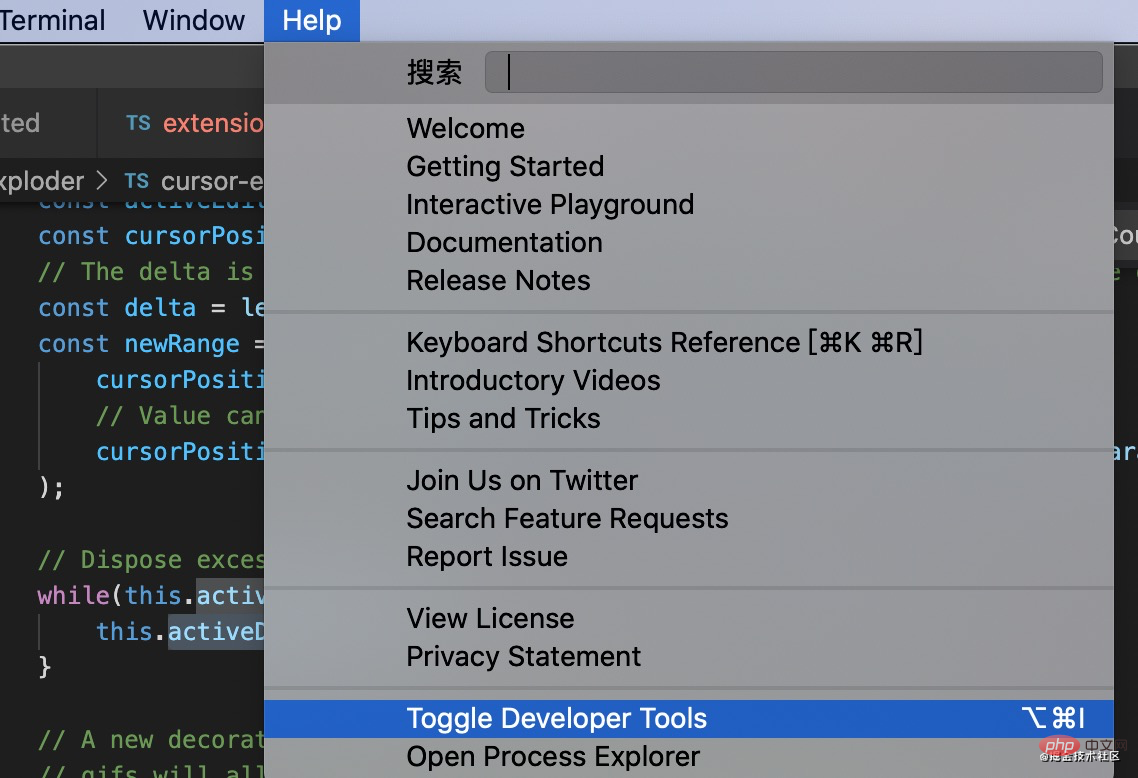
而 electron 又是基于 chromium + nodejs,也就是 ui 部分是網頁。我們可以在 vscode 幫助里打開開發者工具:
然后,可以看到,這編輯器部分就是個 div 啊
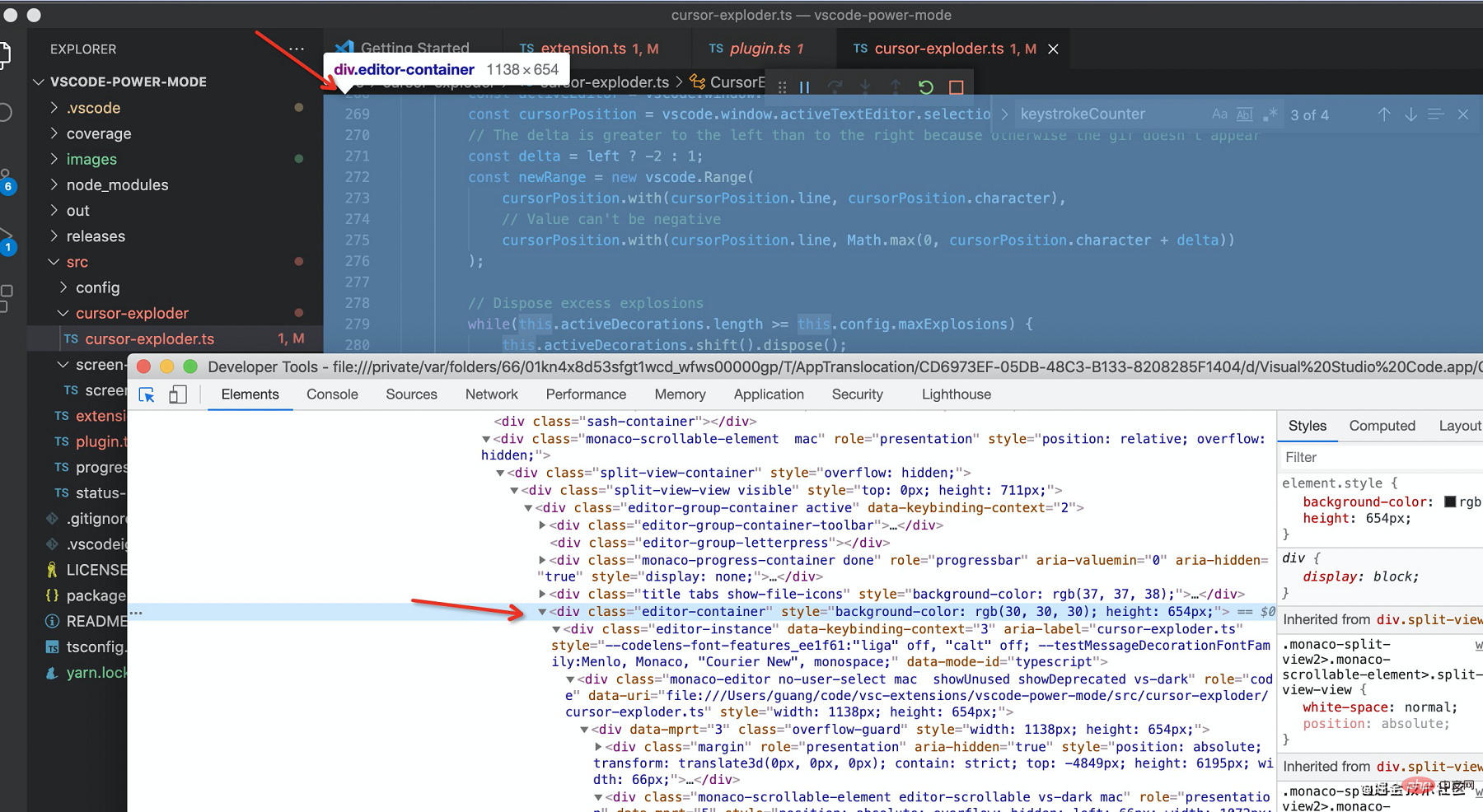
所以剛才在網頁里實現的效果,可以放到 vscode 里實現,思路一樣。
思路是一樣,但是具體怎么做呢?
這就需要了解下 vscode 的 extension api 了,其實也不難,我給大家介紹一下這里用到的 api:
首先,引入 vscode 包,所有的 api 都在這個包里。
import * as vscode from 'vscode';
然后,我們要給文本加樣式,怎么加呢?
在 vscode 的編輯器里面加樣式不是直接操作 dom 的,是受到限制的,要這樣幾步:
- 通過 vscode.window 拿到當前的 editor
const activeEditor = vscode.window.activeTextEditor;
- 拿到當前 editor 的正在編輯的位置
const cursorPosition = activeTextEditor.selection.active;
- 根據位置計算出要添加裝飾的范圍(range)
const newRange = new vscode.Range( cursorPosition.with(cursorPosition.line, cursorPosition.character), cursorPosition.with(cursorPosition.line, Math.max(0, cursorPosition.character + delta)) );
- 創建裝飾對象
vscode.window.createTextEditorDecorationType({ before: { contentText:'', textDecoration: `none; ${defaultCssString}${backgroundCssString} ${customCssString}`, }, textDecoration: `none; position: relative;`, rangeBehavior: vscode.DecorationRangeBehavior.ClosedClosed });
- 然后,給這段 range 的文本加裝飾
activeEditor.setDecorations(decoration, [newRange]);
現在我們就在 vscode 編輯器里面,你正在編輯的位置,加上了一段樣式。
裝飾對象可以添加 before、after,這不就是偽元素么?沒錯,就是偽元素,而且還可以加一系列樣式呢。加啥樣式都可以。
到了這,是不是就有如何在編輯器里做那些效果的思路了呢?
接下來,我們來看看 power-mode 的實現細節。
代碼實現
我們先從效果實現開始看吧,主要是抖動和放煙花:
抖動
抖動的原理我們分析過了,就是定時做位移。
首先,它定義了一系列的位移的裝飾對象,就是通過 vscode.window.createTextEditorDecorationType 這個創建裝飾對象的 api:
public activate = () => { this.dispose(); this.negativeX = vscode.window.createTextEditorDecorationType(<vscode.DecorationRenderOptions>{ textDecoration: `none; margin-left: 0px;` }); this.positiveX = vscode.window.createTextEditorDecorationType(<vscode.DecorationRenderOptions>{ textDecoration: `none; margin-left: ${this.config.shakeIntensity}px;` }); this.negativeY = vscode.window.createTextEditorDecorationType(<vscode.DecorationRenderOptions>{ textDecoration: `none; margin-top: 0px;` }); this.positiveY = vscode.window.createTextEditorDecorationType(<vscode.DecorationRenderOptions>{ textDecoration: `none; margin-top: ${this.config.shakeIntensity}px;` }); this.shakeDecorations = [ this.negativeX, this.positiveX, this.negativeY, this.positiveY ]; }
然后呢?就是定時讓 editor 抖起來啊:
也是根據編輯的 position 算出 range,然后給這段 range 加裝飾
private shake = () => { if (!this.config.enableShake) { return; } // 當前 editor const activeEditor = vscode.window.activeTextEditor; // 要抖動的 range,也就是當前行 const xRanges = []; for (let i = 0; i < activeEditor.document.lineCount; i++) { xRanges.push(new vscode.Range(new vscode.Position(i, 0), new vscode.Position(i, 1))); } // 加裝飾 if (Math.random() > 0.5) { activeEditor.setDecorations(this.negativeX, []); activeEditor.setDecorations(this.positiveX, xRanges); } else { activeEditor.setDecorations(this.positiveX, []); activeEditor.setDecorations(this.negativeX, xRanges); } if (Math.random() > 0.5) { activeEditor.setDecorations(this.negativeY, []); activeEditor.setDecorations(this.positiveY, this.fullRange); } else { activeEditor.setDecorations(this.positiveY, []); activeEditor.setDecorations(this.negativeY, this.fullRange); } clearTimeout(this.shakeTimeout); this.shakeTimeout = setTimeout(() => { this.unshake(); }, 1000); }
如上,就是定時加不同的位移樣式,隨機上下左右抖。
放煙花
然后我們來放煙花,思路我們分析過了,就是在編輯的位置加上一個 gif,然后下次放的時候去掉上次的。
來按流程走一遍:
// 當前編輯器 const activeEditor = vscode.window.activeTextEditor; // 當前編輯位置 const cursorPosition = vscode.window.activeTextEditor.selection.active; // 要加裝飾的范圍 const delta = left ? -2 : 1; const newRange = new vscode.Range( cursorPosition.with(cursorPosition.line, cursorPosition.character), cursorPosition.with(cursorPosition.line, Math.max(0, cursorPosition.character + delta)) ); //創建裝飾對象 const decoration = vscode.window.createTextEditorDecorationType(<vscode.DecorationRenderOptions>{ before: { // before 樣式 }, textDecoration: `當前元素樣式`, rangeBehavior: vscode.DecorationRangeBehavior.ClosedClosed }); // 給該范圍加裝飾 activeEditor.setDecorations(decoration, [newRange]);
加裝飾的流程我們走完了,但是樣式還沒填,怎么加呢?
首先當前元素要相對定位,然后加個 before 偽元素,設置為絕對定位并且 left 和 top 為負數。
之后就是設置背景圖片了,power mode 提供了這么多 gif 可選。
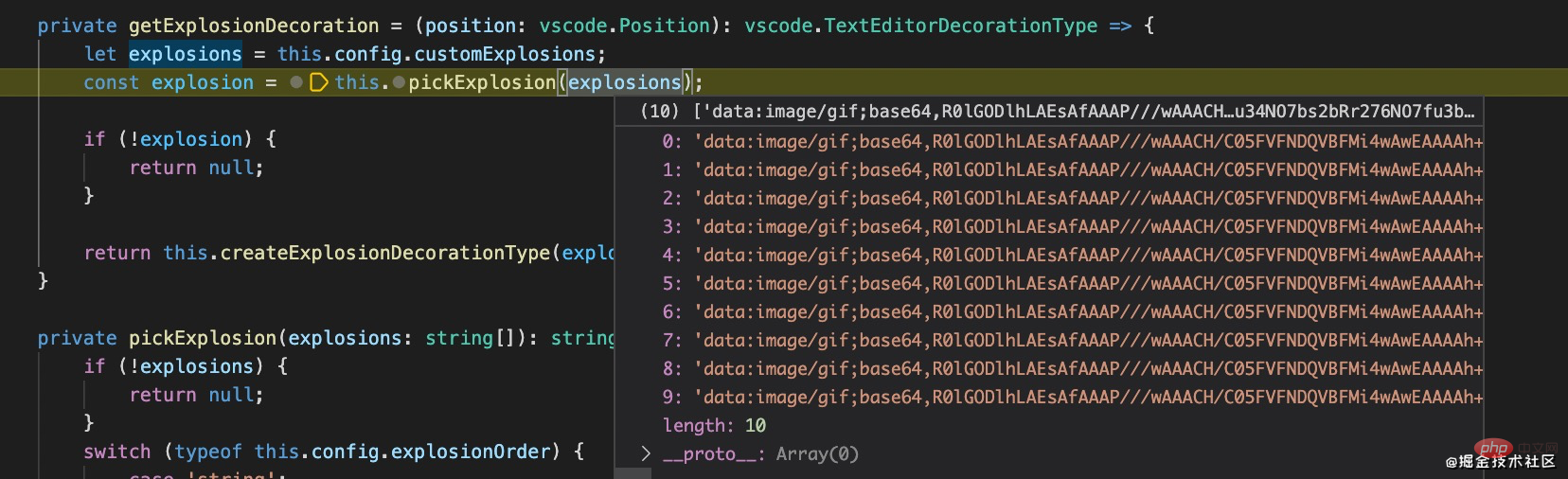
所以呢,裝飾對象就是這樣的:
// 背景圖片的樣式 const backgroundCss = this.getBackgroundCssSettings(explosionUrl); //位置的樣式 const defaultCss = { position: 'absolute', [CSS_LEFT] : `-10px`, [CSS_TOP]: `-1.2rem`, width: `${this.config.explosionSize}ch`, height: `${this.config.explosionSize}rem`, display: `inline-block`, ['z-index']: 1, ['pointer-events']: 'none', }; // 樣式對象轉換為字符串 const backgroundCssString = this.objectToCssString(backgroundCss); const defaultCssString = this.objectToCssString(defaultCss); const customCssString = this.objectToCssString(this.config.customCss || {}); // 創建裝飾對象 const decoration = vscode.window.createTextEditorDecorationType(<vscode.DecorationRenderOptions>{ before: { contentText:'', textDecoration: `none; ${defaultCssString}${backgroundCssString} ${customCssString}`, }, textDecoration: `none; position: relative;`, rangeBehavior: vscode.DecorationRangeBehavior.ClosedClosed });
性能優化
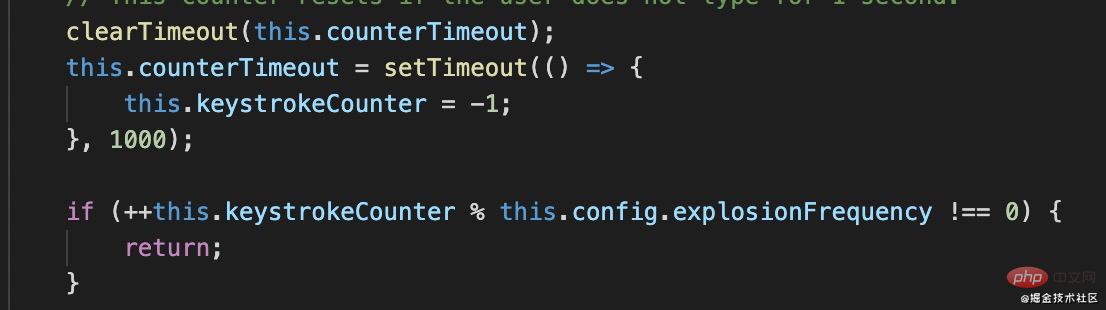
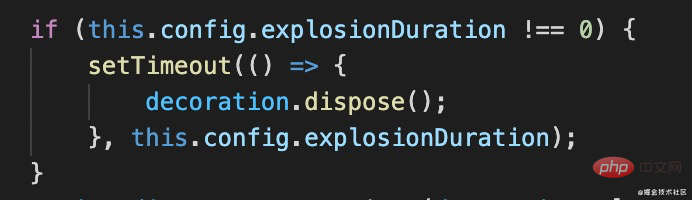
每次編輯都加一個 gif 性能肯定很差,所以得做優化,可以從觸發頻率、同時存在的 gif 數量來考慮:
- 節流,每1秒只能觸發一次
- gif 存在一段時間就刪掉
大功告成,這樣我們把抖動和放煙花在 vscode 里面實現了一遍。
但是,還得加個觸發的入口。
什么時候觸發呢?涉及到兩個 api:
- 編輯文本的時候,出現效果
vscode.workspace.onDidChangeTextDocument(onDidChangeTextDocument);
- 修改了插件配置的時候,重新設置插件對象
vscode.workspace.onDidChangeConfiguration(onDidChangeConfiguration);
從怎么觸發的,到觸發后干什么,我們都清楚了,接下來呢,還要會怎么注冊這個插件到 vscode 中。
插件注冊
注冊插件就是在 package.json 里面配置一下,指定觸發時機:
"activationEvents": [ "*" ]
指定插件入口:
"main": "./out/src/extension",
指定插件的配置:
"contributes": { "configuration": { "title": "Power Mode", "properties": { "powermode.enabled": { "default": false, // 默認值 "type": "boolean",// 值類型 "description": "Enable to activate POWER MODE!!!" } } } }
總結
vscode 基于 electron,而 electron 基于 chromium,所以還是用網頁來做 ui 的,那么很多網頁里面的效果,基本都可以在編輯器實現。
但是是受約束的,要熟悉整個加裝飾的流程:
- 拿到當前編輯器 (activeEditor)
- 拿到當前編輯的位置 (position)
- 算出要加裝飾的范圍 (range)
- 創建裝飾對象 (decorationType)
- 給那段范圍的文本加裝飾 (addDecoration)
抖動和放煙花都是基于這個 api 實現的,不過抖動是做上下左右的隨機位移,放煙花是在編輯的位置加動圖。
實現思路有了,還得指定觸發的入口,也就是文本編輯的時候(onDidChangeTextDocument)。還有配置改變也得做下處理(onDidChangeConfiguration)。
之后,注冊到 vscode 就可以了,在 package.json 里面配置入口(main)、生效事件(activeEvent)、配置項(contibutes.configuration)
希望這篇文章能夠幫你理清 vscode 里面一些編輯效果的實現思路。
兄弟萌,讓我們一起在 vscode 里面放煙花吧!
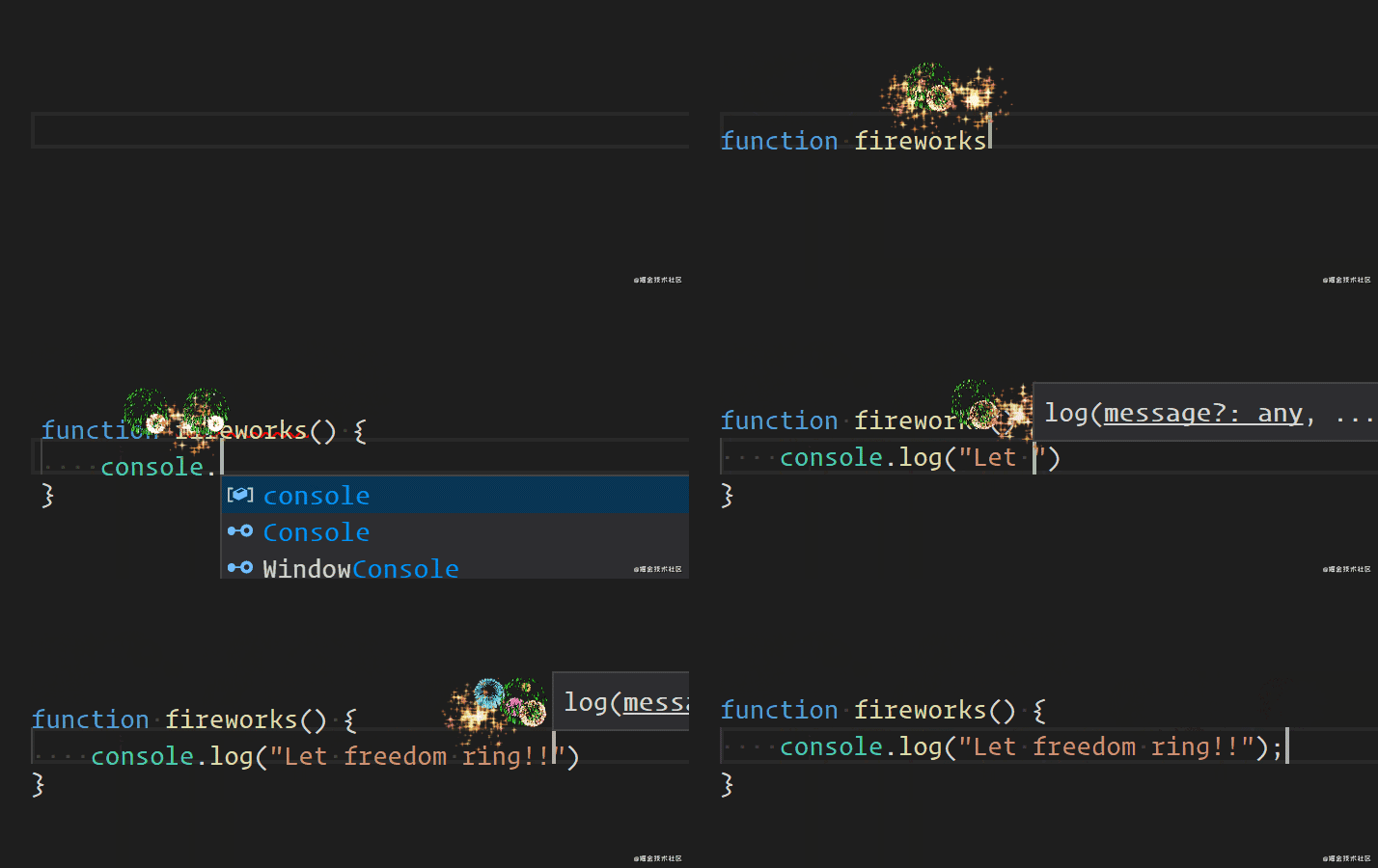
(插件名叫 vscode-power-mode,感興趣可以體驗一下,或者去看看源碼)。
原文地址:https://juejin.cn/post/6982416460723257352
作者:zxg_神說要有光
